

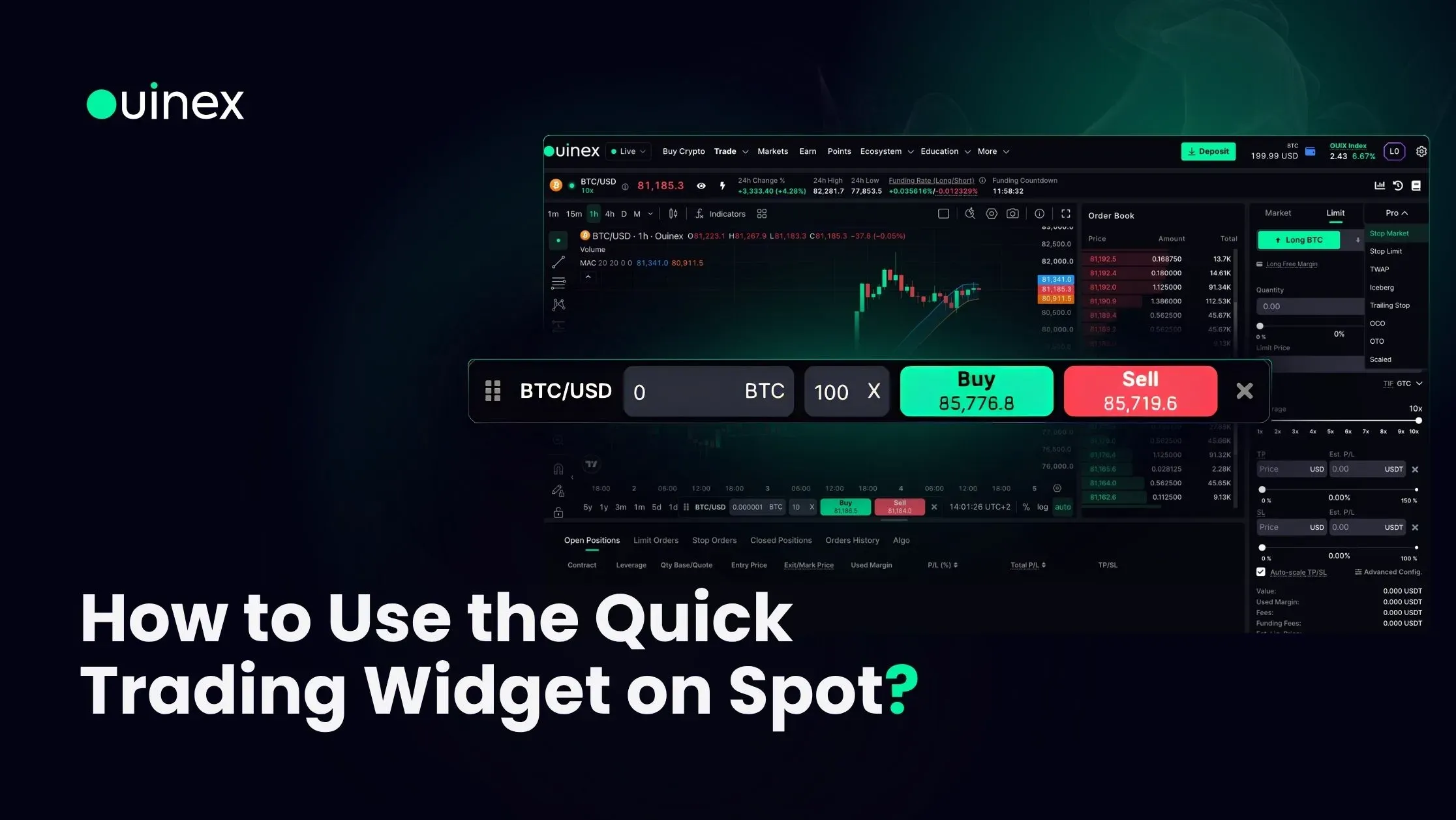
How to Use the Quick Trading Widget on Spot
The Quick Trading widget lets you buy and sell without leaving the chart, including in full-screen mode. It has been on Derivatives for a while. From 4.35 it is on Spot as well.
Read MoreThe Quick Trading widget lets you buy and sell without leaving the chart, including in full-screen mode. It has been on Derivatives for a while. From 4.35 it is on Spot as well.
Read More
From 4.35, Ouinex rejects orders priced too far from, or too close to, the current market price. If you have had an order refused with a price-related error and the price looked perfectly reasonable to you, this is almost certainly why.
Read More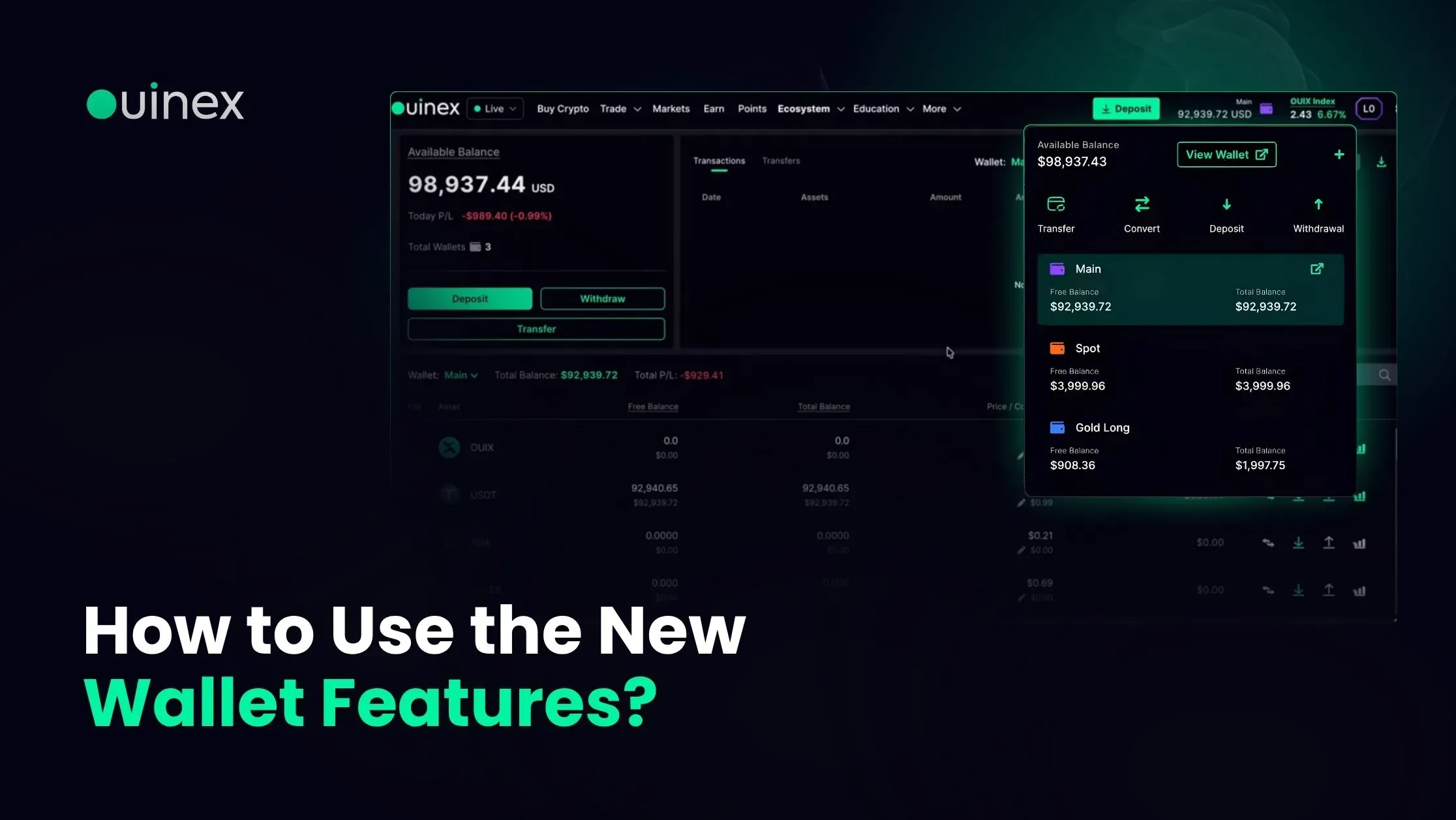
The Ouinex wallet gained four things in 4.35: colour-coding for individual wallets, filtering of transactions and transfers by wallet, a CSV export of all transactions and transfers, and a full wallet statement as a PDF.
Read More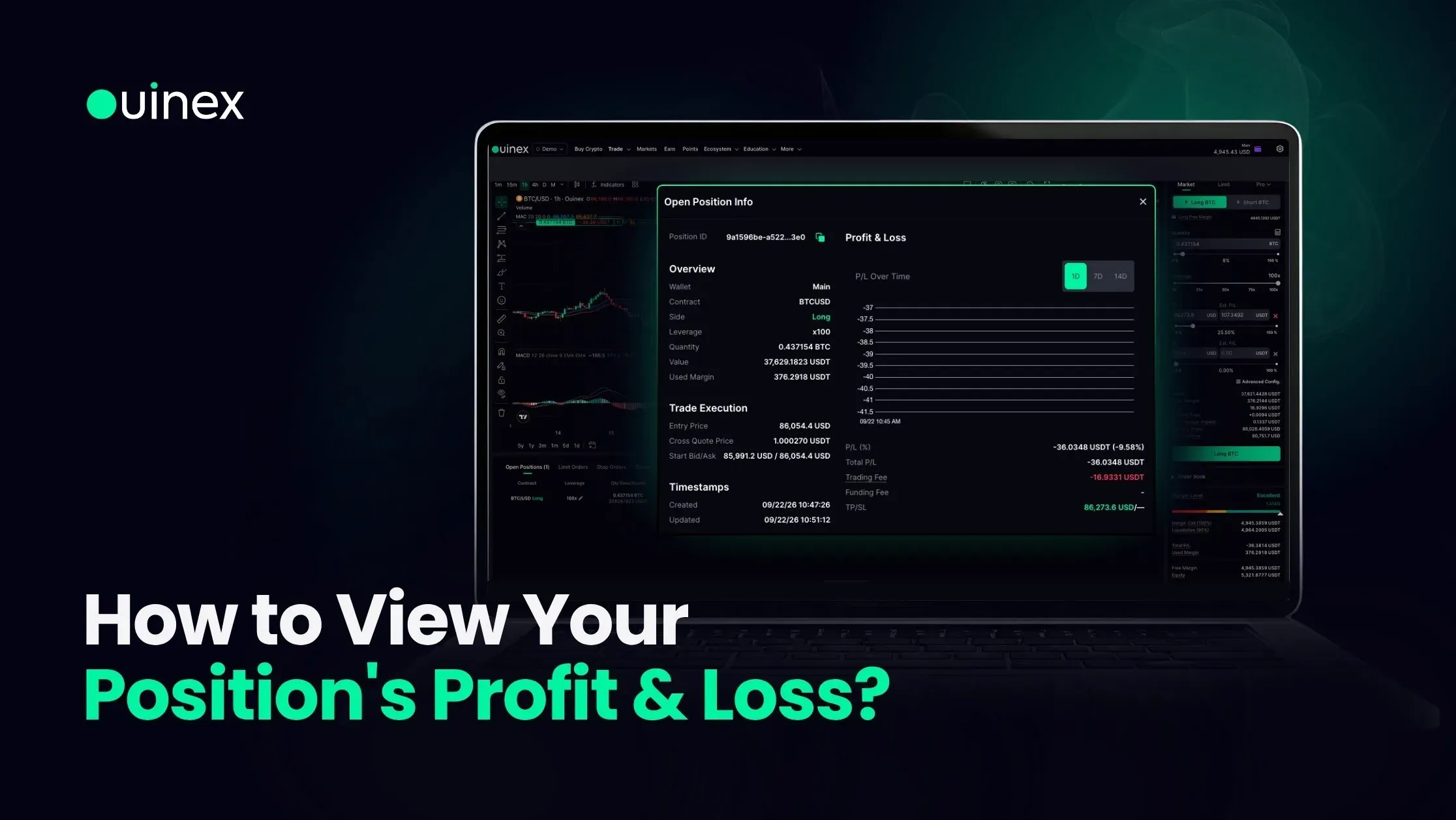
Open Positions has always shown you where a trade stands. From 4.35 it can also show you how it got there.
Read More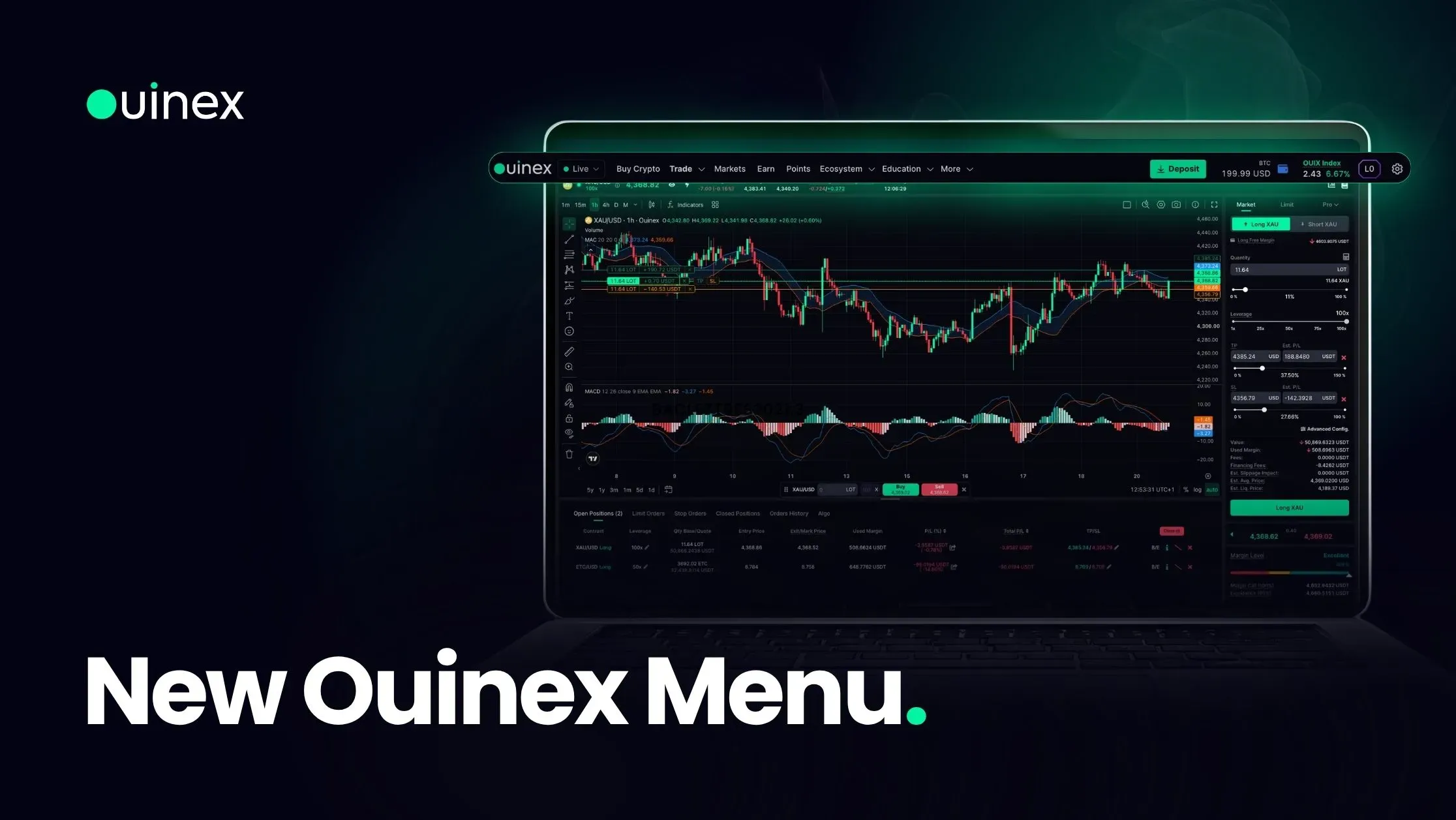
The Ouinex navigation has been rebuilt in 4.35. Two menus are new, one section has moved out of a submenu and into the top level, and the platform and the website are now linked in both directions rather than being two places you had to find separately.
Read More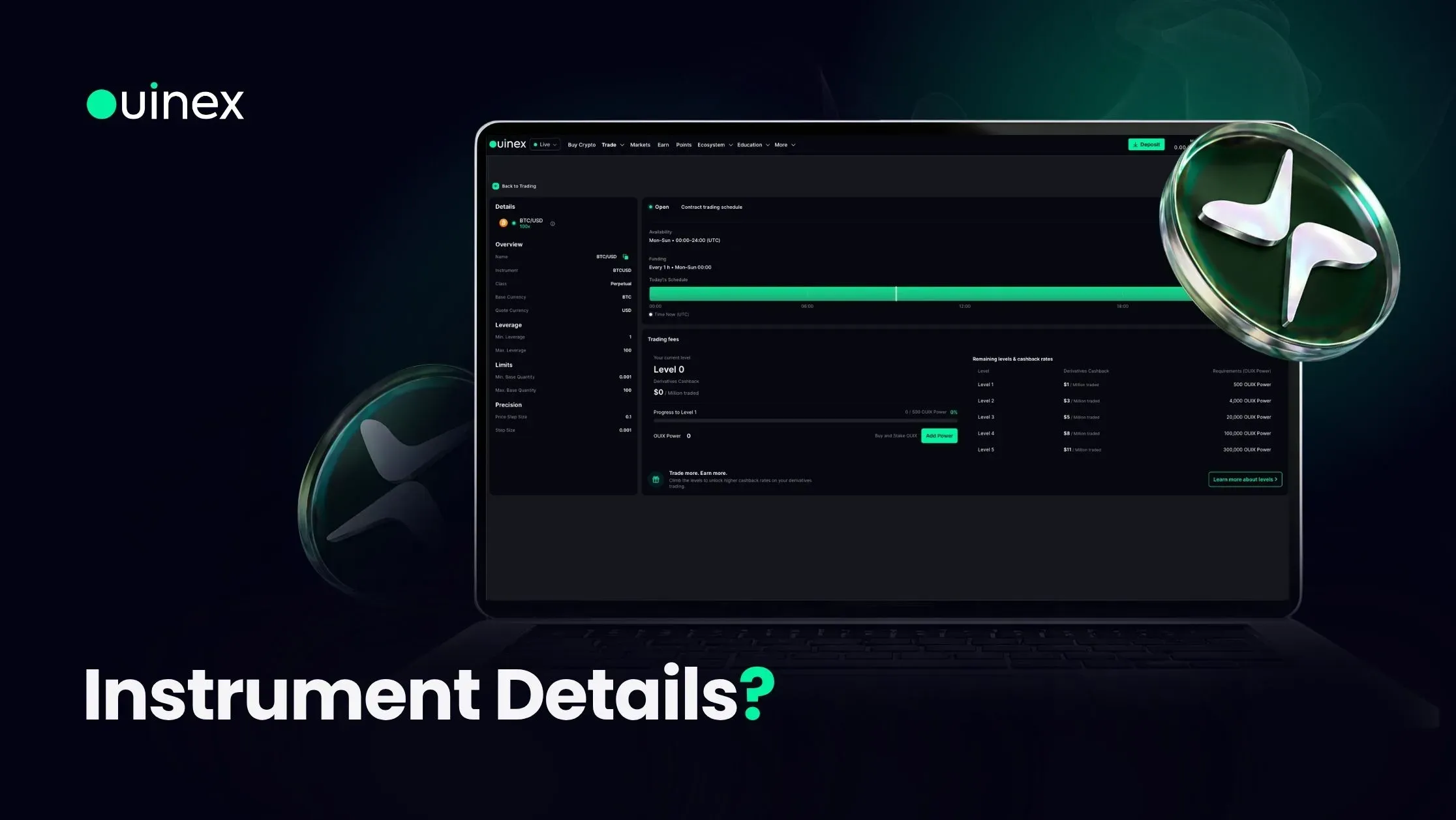
Click the eye icon next to an instrument's name on any chart and Ouinex opens a full details page for that market, the leverage available, the minimum and maximum quantity, the price step, the trading schedule with the current time marked live, and your own fee position on that instrument.
Read More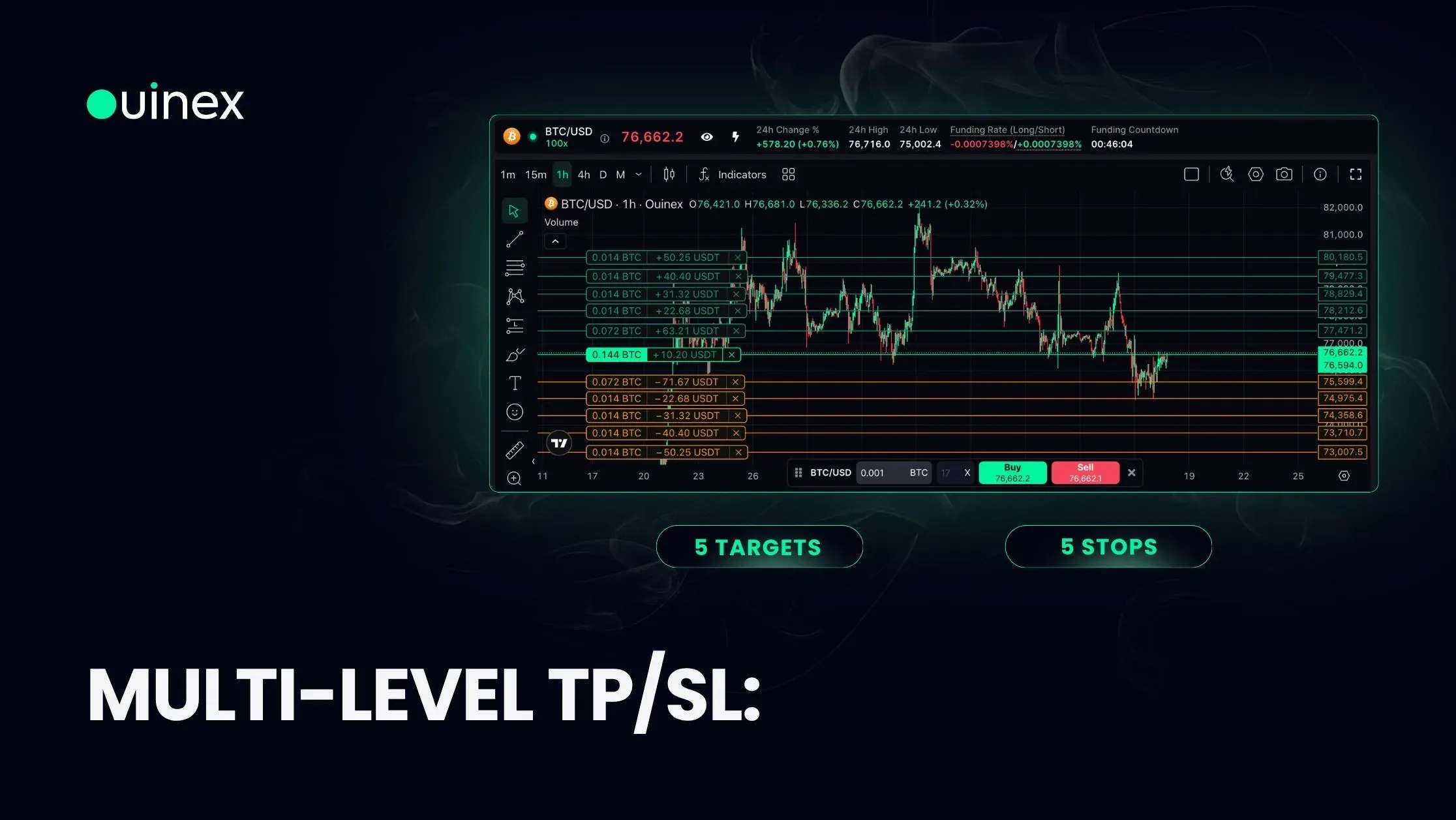
Until 4.35, a position on Ouinex could carry one take profit and one stop loss. It can now carry up to five of each, every level with its own price and its own quantity, so you can close half the position at the first target, a quarter at the second, and let the remainder run. On top of that, the stop side can be handed to one of three automated strategies: break-even, stop-win, or a trailing stop.
Read More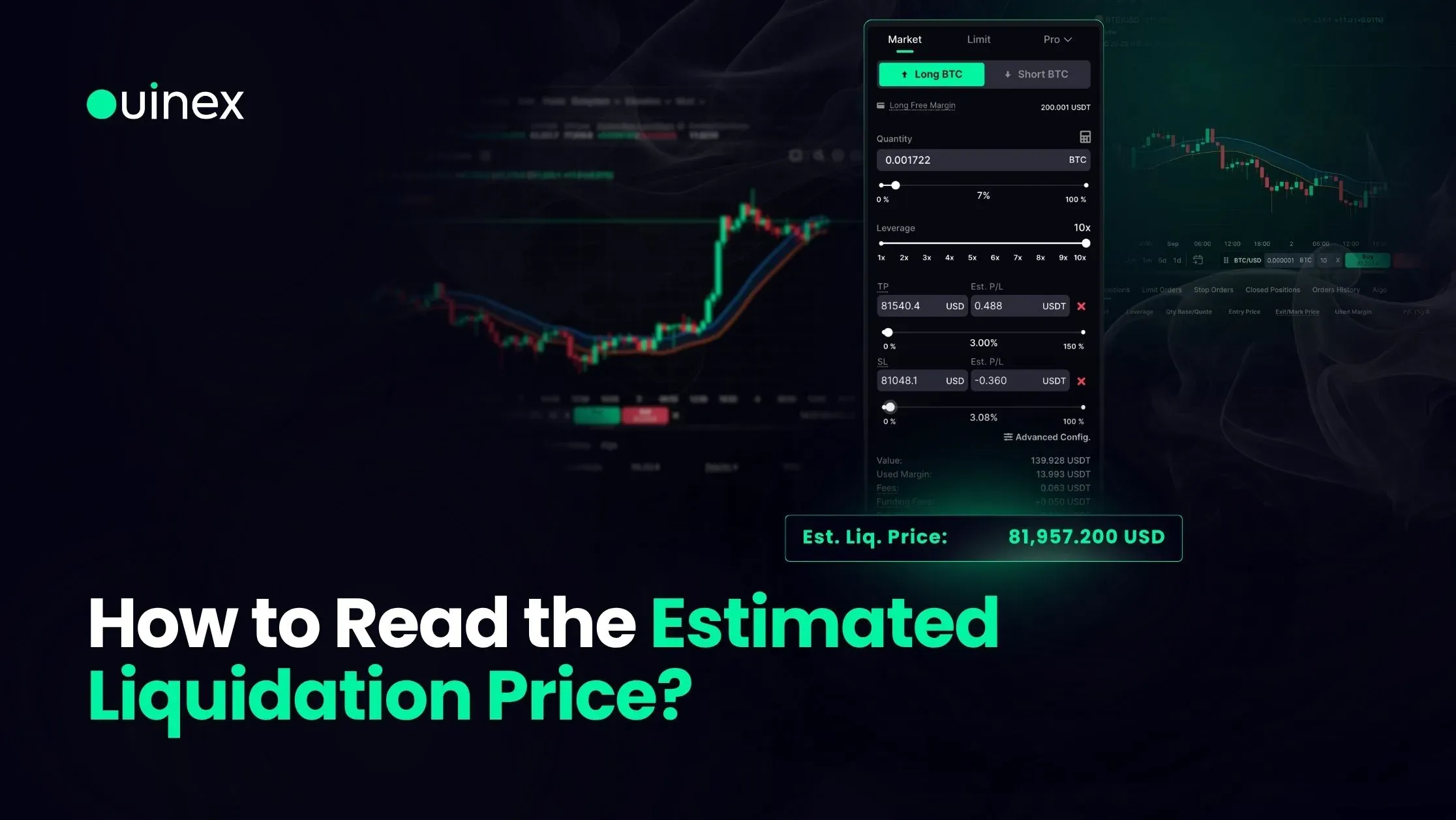
Ouinex now shows you the estimated price at which a position would be liquidated before you place the order. It sits on the Est. Liq. Price line in the order summary at the bottom of the trade form, directly above the confirm button, and it updates in real time as you change your quantity or your leverage.
Read More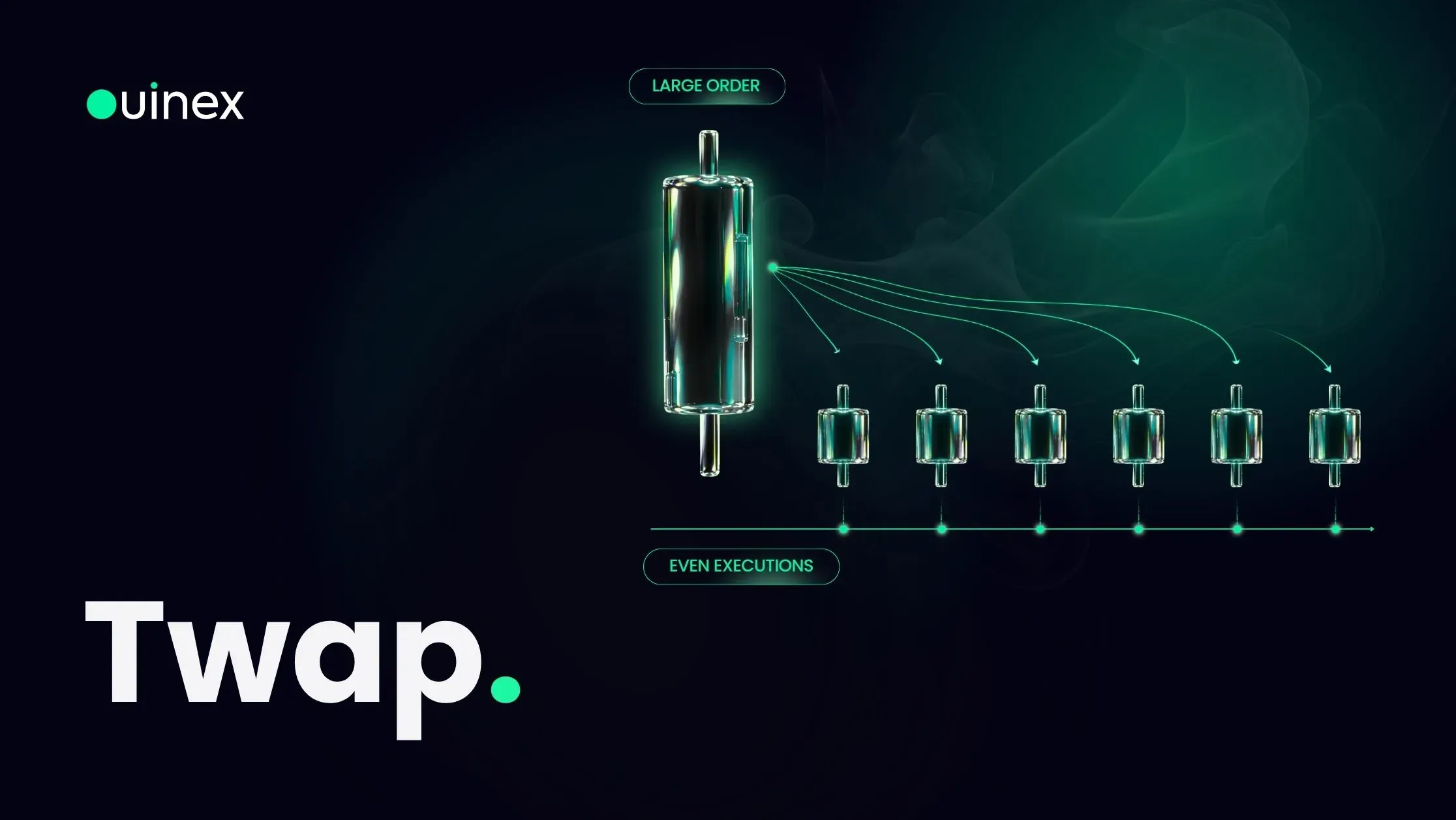
A TWAP order splits one large order into smaller pieces and executes them evenly across a time window you choose. The name stands for Time-Weighted Average Price, and the point of it is simple: one large order takes more of the available liquidity than a small one, and announces itself to everyone watching the book while it does. Several small fills spread across twenty minutes do neither.
Read More